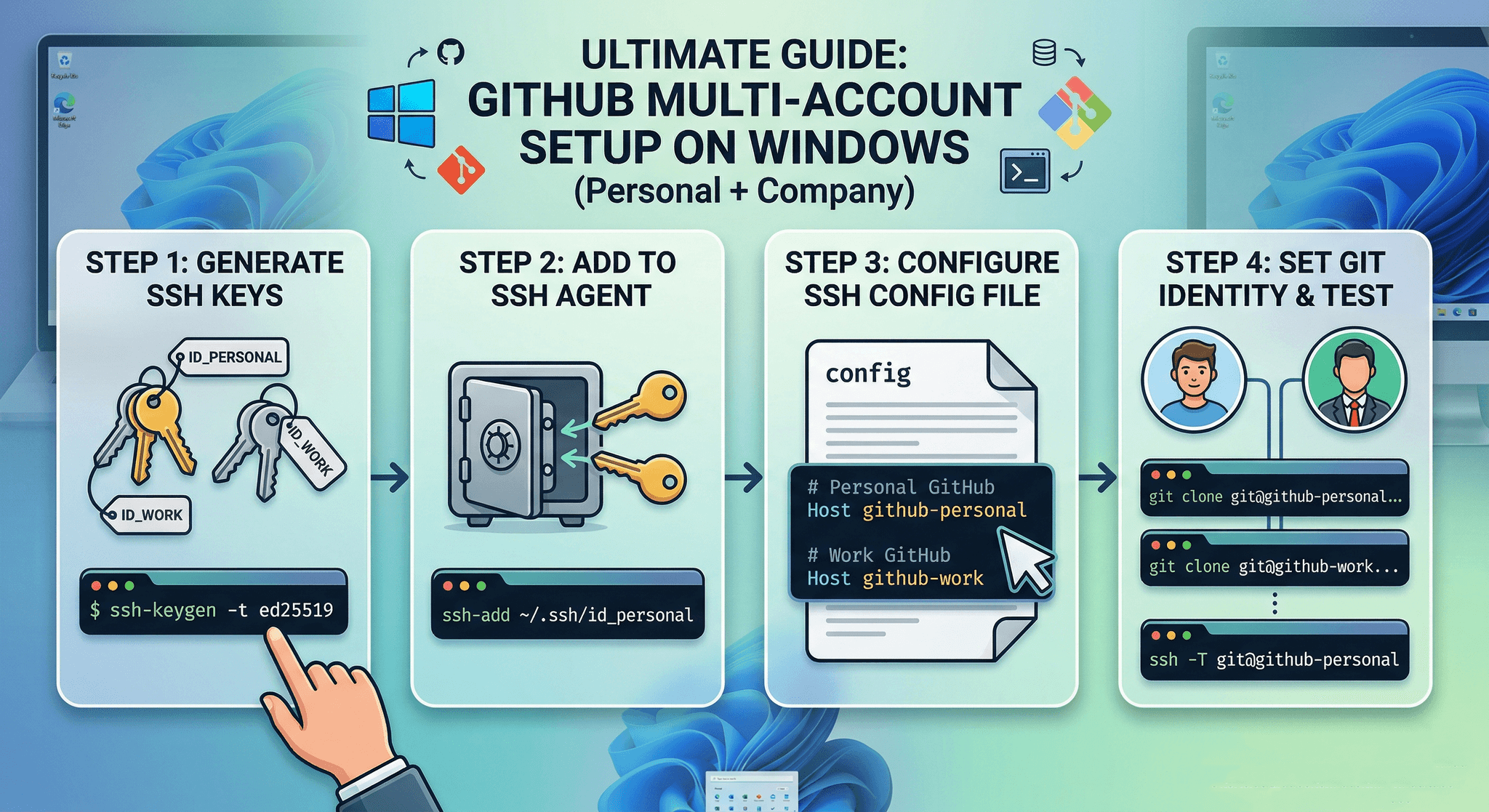

Complete Guide: GitHub Multi-Account Setup (Personal + Company) on Windows
Author: Md Mim Shifat
Environment: Windows 10/11 + Git Bash + SSH
Goal: Use Personal and Company GitHub accounts on the same machine without conflicts.
Why This Setup Is Needed
When you use:
On the same computer, two problems can happen:
1. SSH authentication conflicts (wrong account pushes)
2. Wrong commit author name/email
This guide solves both issues properly using:
This is the professional way senior developers handle multiple GitHub accounts.
PART 1 — Open Git Bash Properly
Step 1 — Open Git Bash
1. Click Windows Search 🔍
2. Type Git Bash
3. Open it
You should see something like:
MINGW64 ~That ~ means you are in:
C:\Users\YourUsername
Good — this is your home directory.
PART 2 — Create .ssh Folder (Important)
SSH keys are stored inside a hidden folder called .ssh.
Step 2 — Create .ssh Folder
Run:
mkdir -p ~/.sshNow enter the folder:
cd ~/.sshVerify your location:
pwdIt must show:
/c/Users/YourUsername/.ssh
If yes → perfect.
PART 3 — Create SSH Keys
We will create:
id_personal → For personal GitHubid_work → For company GitHubStep 3 — Create Personal SSH Key
Make sure you are inside .ssh.
Run:
ssh-keygen -t ed25519 -C "your_personal_email@gmail.com"When it asks:
Enter file in which to save the key:
Type:
id_personal
Press Enter.
When it asks for passphrase:
You should see:
Your identification has been saved in id_personal
Your public key has been saved in id_personal.pub
Step 4 — Create Work SSH Key
Still inside .ssh, run:
ssh-keygen -t ed25519 -C "your_company_email@company.com"When it asks:
Enter file in which to save the key:
Type:
id_work
Press Enter twice (or set passphrase).
Step 5 — Verify Keys
Run:
ls -laYou should see:
id_personalid_personal.pubid_workid_work.pubIf yes → your keys are correctly created.
PART 4 — Start SSH Agent
SSH Agent manages your keys during the session.
Step 6 — Start SSH Agent
eval "$(ssh-agent -s)"You should see:
Agent pid 1234
Step 7 — Add Keys to SSH Agent
ssh-add ~/.ssh/id_personal
ssh-add ~/.ssh/id_work
Verify:
ssh-add -lYou should see two identities listed.
PART 5 — Create SSH Config File
This is the most important part.
We must tell SSH:
id_personalid_workStep 8 — Create Config File
Open config file:
nano ~/.ssh/configPaste this exactly:
# Personal GitHub
Host github-personal
   HostName github.com
   User git
   IdentityFile ~/.ssh/id_personal
   IdentitiesOnly yes

# Work GitHub
Host github-work
   HostName github.com
   User git
   IdentityFile ~/.ssh/id_work
   IdentitiesOnly yes
Save:
1. Press Ctrl + X
2. Press Y
3. Press Enter
Done.
PART 6 — Add Public Keys to GitHub
Now we must register keys in GitHub.
Add Personal Key
Run:
cat ~/.ssh/id_personal.pubCopy the entire output.
Go to:
GitHub → Settings → SSH and GPG Keys → New SSH Key → Paste → Save
Add Work Key
Run:
cat ~/.ssh/id_work.pubCopy output → Add to your company GitHub account.
PART 7 — Test Connection
Test Personal
ssh -T git@github-personalIf it asks:
Are you sure you want to continue connecting (yes/no)?
Type:
yes
Then you should see:
Hi username! You've successfully authenticated...
Test Work
ssh -T git@github-workType yes if asked.
If successful → setup complete.
PART 8 — Clone Repositories Correctly
Now cloning must use custom host names.
Clone Personal Repository
git clone git@github-personal:your-username/repo.gitExample:
git clone git@github-personal:mimshifat/small-projects.gitClone Company Repository
git clone git@github-work:company-org/repo.gitExample:
git clone git@github-work:techcorp/backend-api.git⚠️ **Do NOT use github.com anymore.**
Use github-personal or github-work.
PART 9 — Git Commit Identity Setup
SSH controls access.
Git config controls commit author.
Set Global (Personal Default)
Run once:
git config --global user.name "Your Name"
git config --global user.email "your_personal_email@gmail.com"
Now all repos default to personal identity.
Set Company Identity (Inside Company Repo Only)
After cloning company repo:
cd repo-name
git config user.name "company-username"
git config user.email "your_company_email@company.com"
This affects *only* that repository.
Always Verify Identity
Inside any repository:
git config --show-origin user.name
git config --show-origin user.emailfile:.git/config → That means local company identity is active.file:C:/Users/YourUsername/.gitconfig → That means global (personal) identity is active.Final Mental Model
🎯 Final Result
After completing this guide, you now have:
✔ Separate SSH keys
✔ Separate GitHub authentication
✔ Separate commit identities
✔ No conflicts
✔ Professional multi-account workflow